Snipping Tool alternatives in 2026
The Snipping Tool is Microsoft's screenshot app for Windows 11 and Windows 10. If you are on a Mac or a Chromebook, you already have a built-in equivalent: Shift-Command-5 on a Mac, and Shift + Ctrl + Show windows on a Chromebook. People look for another tool when they want full-page captures in the browser, PDF markup, share links, or the same tool on every computer they use.
Try Markup Hero Free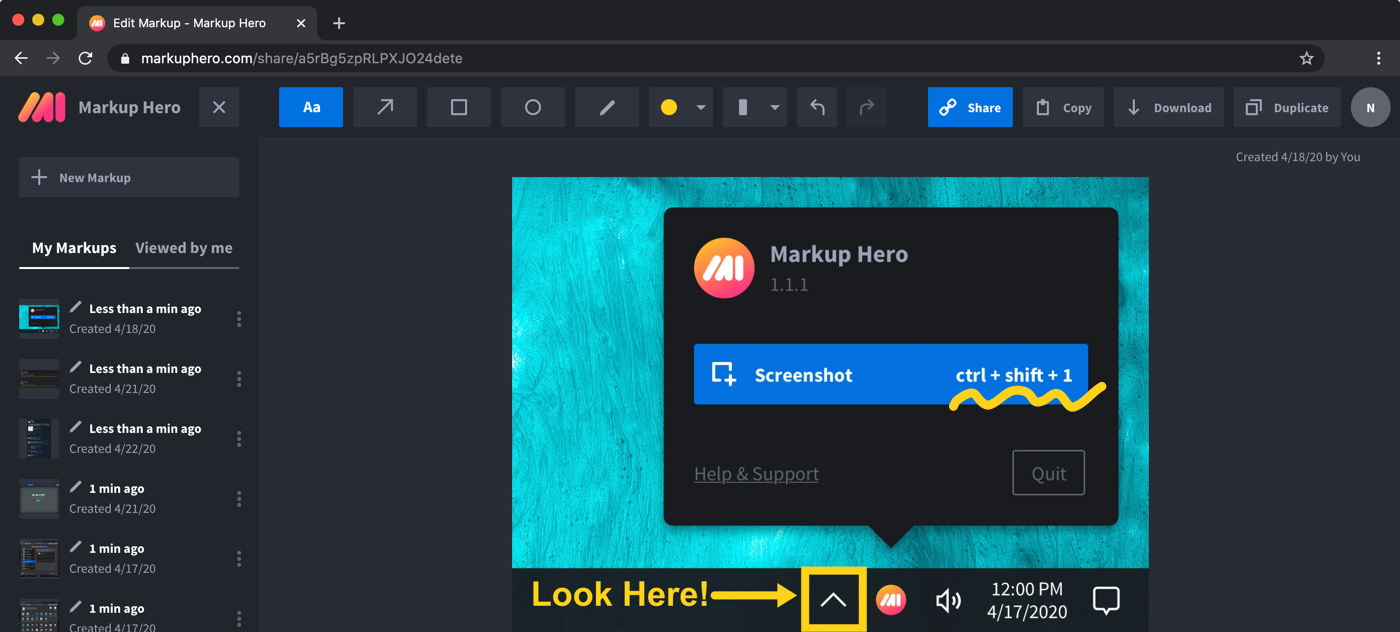
The options at a glance
Checked on November 12, 2026.
Windows Snipping Tool: what it already does
On Windows, the Snipping Tool opens with Windows logo key + Shift + S for an image, or Windows logo key + Shift + R for a video clip. It captures a rectangle, a window, the full screen or a freeform shape and can delay a capture by 1-5 seconds. You can draw with a pen or highlighter, add shapes and crop, and Text actions copy text out of a snip, with recognition done on your device.
Each snip is saved to your Screenshots folder automatically, and you can copy it to the clipboard or send it with Share in the See More menu. It is a free app on the Microsoft Store, and Microsoft's help page covers both Windows 11 and Windows 10. For a side-by-side look, see Markup Hero vs Snipping Tool.
- Good for: quick image and video captures on Windows, saved straight to a folder on your PC.
Mac Screenshot app: the Mac's own snipping tool
On a Mac, press Shift-Command-5 to open the Screenshot app, or find it in the Utilities folder of your Applications folder; it is part of macOS Mojave 10.14 or later. It captures the entire screen, a window or a portion of the screen, records the screen, and has a timer and an option to use a microphone while recording. Shift-Command-3 captures the whole screen and Shift-Command-4 a portion.
After a capture, click the floating thumbnail to mark up the screenshot or trim the recording. Markup in Preview, Mail, Notes and Photos also lets you write, sign and draw on PDFs and images.
- Good for: Mac users who want captures, recordings and quick markup with nothing to install.
Chromebook Screen capture: screenshots and recordings built in
On a Chromebook, press the Screenshot key if your keyboard has one, or Shift + Ctrl + Show windows (Ctrl + Shift + F5 on an external keyboard without that key). Then choose a full screen, partial or window screenshot. The same menu has Screen record, which saves video as a .webm file or a GIF.
Screenshots and recordings are copied to your clipboard and saved to your Downloads folder, and you can pick a different folder in the capture settings. To add arrows and text and share the result, see how to screenshot and annotate on a Chromebook.
- Good for: quick captures and short screen recordings on a Chromebook with no extra apps.
Markup Hero: a Chrome extension and desktop apps that share by link
Markup Hero is a screenshot and annotation tool that runs in the browser. The free Chrome extension captures any tab, including scrolling full-page screenshots, and there is a free Firefox add-on. The free desktop apps for Mac, Windows and Linux (Linux is in beta) take a screenshot with Command+Shift+1 or Ctrl+Shift+1 and open it in the editor in your browser. On a Chromebook, the extension and editor both work in Chrome, so nothing else has to be installed.
You can add arrows, text, highlights and blur, annotate multi-page PDFs, copy text with the Magic tool, and share a link that others can annotate too. The free plan includes 25 markups that stay editable for 24 hours; Premium is $10/month or $3/month billed yearly. You can try it now without an account.
- Good for: one tool on Windows, Mac, Linux and Chromebook, with share links and PDF markup.
- Not for: screen recording, which Markup Hero does not do, or editing offline; the editor needs an internet connection.
Greenshot: free on Windows, low cost on Mac
Greenshot is a light-weight, free and open source screenshot tool for Windows. It captures a selected region, a window or the full screen, and lets you annotate, highlight or hide parts of the screenshot before you save, copy, print or email it. It needs Windows 10 or later. A Mac version costs $1.99, and the project says it has no plans for a Linux version.
- Good for: free, light-weight captures with annotation on Windows.
- Not for: Linux users.
ShareX: free and open source, with recording
ShareX is a free and open source tool for Windows. It captures the full screen, a region, a window or a scrolling page, records the screen and GIFs, and includes an image editor with blur and pixelate, text recognition (OCR) and uploads to many destinations. It needs no account. Versions for macOS and Linux are in preview. See Markup Hero vs ShareX.
- Good for: Windows users who want capture, recording and automated uploads in one free app.
- Not for: anyone who needs a finished Mac or Linux release today; those versions are still previews.
Lightshot: free, with a Chrome version
Lightshot is a free screenshot tool for Windows and Mac, also available for Chrome, Firefox, IE and Opera. Select an area, edit it right away or later in its online editor, and upload it to get a short link. On Windows, the desktop version replaces the standard Windows screenshot tool and works with the same hotkey.
Its privacy page says every uploaded image can be viewed by anyone who types in that exact URL, so keep private information out of uploads. See Markup Hero vs Lightshot.
- Good for: free, quick captures and a short link for information that is fine to be public.
- Not for: private or sensitive screenshots that you plan to upload.
Snagit: a paid app for detailed captures and video
Snagit, now called Camtasia Snagit, is a paid app for Windows 10 and 11 and macOS 14 or later. It records the screen, microphone, system audio and webcam, captures scrolling screenshots, adds arrows, callouts and text, and can blur or block emails, phone numbers and card details with Smart Redact. Step Capture turns your clicks into a shareable guide.
Snagit Individual is $39.00 per user per year, billed yearly, as of November 2026. The trial needs no credit card, but you create a TechSmith account after you download it. See Markup Hero vs Snagit and Snagit alternatives.
- Good for: documentation and training work, where video, step guides and detailed editing matter.
- Not for: occasional captures, if you would rather not pay a yearly subscription.
GoFullPage: full-page screenshots in Chrome
GoFullPage is a browser extension for Chrome, Edge and Firefox that takes a screenshot of an entire webpage, which you can download as PNG, JPG or PDF. The free version takes as many screenshots as you want. Cropping and annotations such as blur, text and highlight need Premium, which costs $12 USD per year with a 7-day free trial. Screenshots are stored in your browser on your computer, not on its servers.
- Good for: saving whole webpages as an image or PDF for free.
- Not for: capturing a PDF open in the browser; its FAQ says the extension cannot scroll through a PDF.
Which one fits your computer
- Windows: the Snipping Tool covers quick captures. Greenshot, ShareX and Lightshot are free extras, and Snagit is the paid option.
- Mac: start with Shift-Command-5. Greenshot, Lightshot and Snagit have Mac versions, and Markup Hero has a free Mac app.
- Chromebook or any browser: use the built-in Screen capture, or a Chrome extension such as Markup Hero, GoFullPage or Lightshot.
- Linux: Markup Hero has a beta Linux app, and ShareX for Linux is in preview.
- Video: the Snipping Tool, the Mac Screenshot app, Chromebook Screen capture, ShareX and Snagit record the screen. Markup Hero does not.
- More side-by-side comparisons are on our compare page.
Frequently asked questions
Is there a Snipping Tool for Mac?
macOS has its own. Press Shift-Command-5 to open the Screenshot app, which captures the entire screen, a window or a portion of the screen and can also record the screen. Shift-Command-4 captures a portion right away. Click the thumbnail that appears afterward to mark up the screenshot.
Is there a Snipping Tool for Chromebook?
Chromebooks have screen capture built in. Press the Screenshot key, or Shift + Ctrl + Show windows, then choose a full screen, partial or window screenshot, or Screen record for a video. Captures are copied to your clipboard and saved to Downloads. To annotate and share them, you can add the Markup Hero Chrome extension.
Is there a Snipping Tool Chrome extension?
Several screenshot tools run as Chrome extensions. Markup Hero's free extension captures any tab, including full-page scrolling screenshots, and opens them in its editor to annotate and share. GoFullPage saves full pages as images or PDFs, and Lightshot has a Chrome version.
Does the Snipping Tool work on Windows 10?
Microsoft's Snipping Tool help page applies to both Windows 11 and Windows 10. On Windows 10 you can take free-form, rectangular, window and full-screen snips and then draw on them with the pen or highlighter.
What is a free alternative to the Snipping Tool on Windows?
Greenshot, ShareX and Lightshot are free on Windows. Greenshot is light-weight with annotation tools, ShareX adds screen recording, scrolling capture and uploads, and Lightshot uploads a capture to a short link. Markup Hero's free Windows app opens each screenshot in its browser editor for markup, PDFs and share links.
Can I share a screenshot as a link instead of a file?
Yes. Markup Hero gives each markup a share link with custom privacy settings, and people you share with can add their own annotations. Lightshot also gives a short link, but its privacy page says anyone with the exact URL can view the image. The Snipping Tool shares through Share in its See More menu.
Prices and features checked on November 12, 2026 on each product's own website: apps.microsoft.com, support.microsoft.com, support.apple.com, support.apple.com, support.apple.com, support.google.com, getgreenshot.org, getgreenshot.org, getgreenshot.org, getgreenshot.org, getsharex.com, getsharex.com, app.prntscr.com, app.prntscr.com, app.prntscr.com, app.prntscr.com, techsmith.com, techsmith.com, techsmith.com, gofullpage.com, gofullpage.com, gofullpage.com. Prices can change; check the vendor's site before you buy.
More comparisons: Markup Hero vs. other screenshot tools.
New and coming soon from Markup Hero
Photo reports are live in SuperHero plans, and two more tools are on the way. Join a waitlist to get early access.
Markup Hero for teams in: