Screenshot and annotate on a Chromebook
To take a screenshot on a Chromebook, press the Screenshot key, or press Shift + Ctrl + Show windows and choose Screenshot. ChromeOS saves it to your Downloads folder and copies it to the clipboard. The built-in Gallery app can crop, rotate and adjust it. To add arrows, text or blur and share it with a link, use the free Markup Hero Chrome extension and browser editor, which run right in Chrome.
Try Markup Hero Free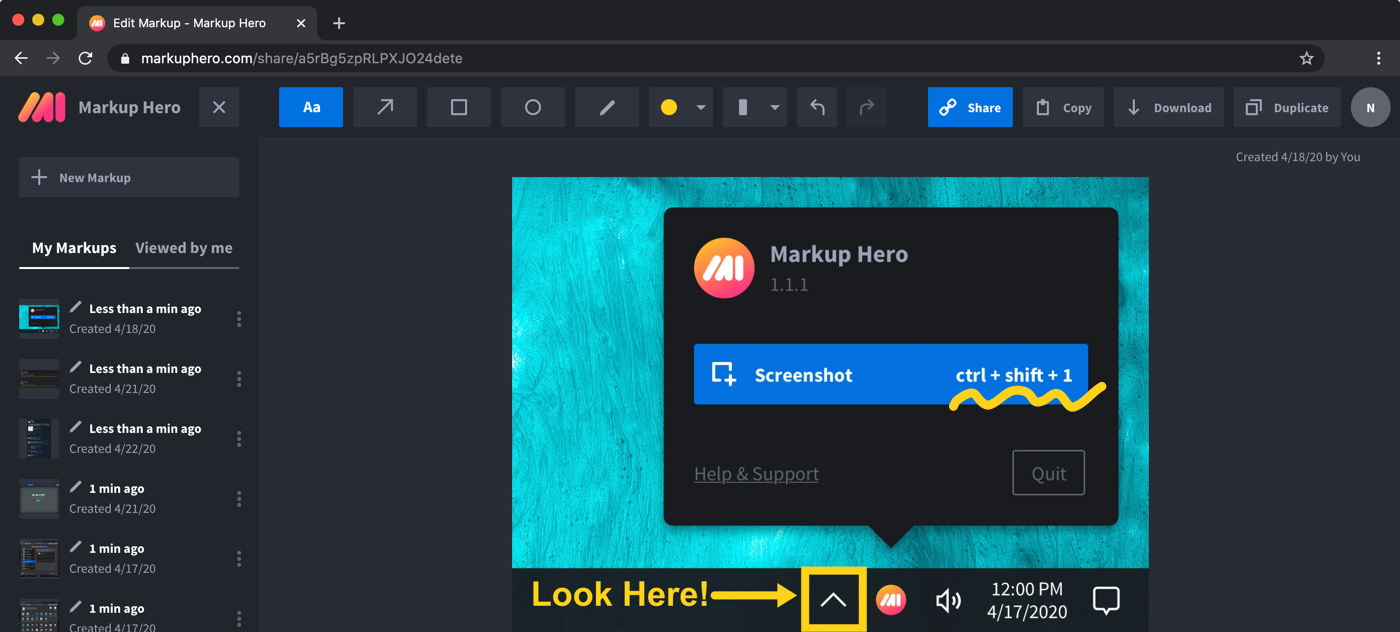
Step by step
Add the Markup Hero Chrome extension
Install the free Markup Hero Chrome extension from Chrome on your Chromebook. If you only want to mark up a screenshot you already took, you can skip this and open the editor at markuphero.com/new with no account.
Capture your screen
Use the extension to screenshot the current tab, including a full scrolling page. For anything outside the browser, use the ChromeOS shortcut Shift + Ctrl + Show windows, which also copies the image to your clipboard.
Open it in the editor
Open your screenshot in the Markup Hero editor in Chrome. For a ChromeOS screenshot, paste it from the clipboard into the editor or upload it from your Downloads folder.
Add arrows and text
Pick the arrow tool to point at what matters, then add a text box to explain it. Rectangles, ovals and the highlighter help you mark areas, and you can change colors and sizes.
Blur anything private
Use the blur tool on names, email addresses or numbers you do not want others to see. The blur is permanent in the shared image.
Share or save it
Copy the share link and paste it into an email, Slack or a text message, where it shows a thumbnail preview. You can also copy the image to your clipboard or download it as a PNG.
The built-in way: ChromeOS screen capture
Every Chromebook has a screen capture tool. If your keyboard has a Screenshot key, press it. Otherwise press Shift + Ctrl + Show windows, or Ctrl + Shift + F5 on an external keyboard without a Show windows key. You can also select Screen capture from the settings at the bottom right of your screen. Then pick Screenshot in the menu at the bottom and choose one of three options:
- Full screen.
- Partial screen.
- A single window.
Where screenshots go and how to edit them
Screenshots are copied to your clipboard automatically and saved in your Downloads folder. To save them somewhere else, open screen capture, select Settings and choose a folder. Google's Chromebook screenshot help has the full list of shortcuts.
To edit a saved screenshot, open it from the Files app and it opens in the Gallery app. Google's help for Gallery lists renaming, crop and rotate, rescaling, lighting filters, undo and redo, and printing. For arrows, text boxes, blur or a share link, use an annotation tool such as Markup Hero.
Annotating with Markup Hero
Markup Hero works on a Chromebook through the Chrome extension and the editor in your browser, so you do not need a separate app. The extension takes screenshots of any tab, including full-page scrolling screenshots. You can also paste a ChromeOS screenshot from your clipboard straight into the editor.
The editor has text, arrows, lines, rectangles, ovals, a pen and a highlighter, with colors, line thickness and font size. Blur hides passwords or personal details permanently. When you finish, share a link, copy the image to your clipboard or download a PNG.
Need a video instead?
Markup Hero does not record your screen. ChromeOS does: press Shift + Ctrl + Show windows, select Screen record and choose full screen, part of the screen or a window. Recordings can be saved as a video file (.webm) or as a GIF.
Frequently asked questions
What is the screenshot shortcut on a Chromebook?
Press the Screenshot key if your keyboard has one. Otherwise press Shift + Ctrl + Show windows, then choose Screenshot. On an external keyboard without a Show windows key, press Ctrl + Shift + F5.
Where do screenshots go on a Chromebook?
They are saved in your Downloads folder and copied to your clipboard. You can pick a different folder in the screen capture settings.
How do I draw on a screenshot on a Chromebook?
Open or paste the screenshot into the Markup Hero editor in Chrome, then use the pen, arrow, text, shape and highlighter tools. It is free to try at markuphero.com/new with no account or credit card.
Can I take a scrolling screenshot on a Chromebook?
The ChromeOS screen capture options are full screen, partial screen and window. The Markup Hero Chrome extension can capture a full scrolling page of a browser tab in one image.
Is there a Markup Hero app for ChromeOS?
There is no separate ChromeOS app. On a Chromebook you use the Markup Hero Chrome extension and the editor in Chrome, which is all you need.
Is Markup Hero free on a Chromebook?
Yes. The Basic plan is free forever with 25 markups, annotations editable for 24 hours and uploads up to 8 MB. Premium is $10/month, or $3/month billed yearly, with unlimited markups.
Who can see my shared screenshot?
You decide who gets the share link, and you can adjust the sharing and privacy settings for each markup. Blur sensitive details before you share.
Prices and features checked on November 8, 2026 on each product's own website: support.google.com, support.google.com. Prices can change; check the vendor's site before you buy.
More comparisons: Markup Hero vs. other screenshot tools.
New and coming soon from Markup Hero
Photo reports are live in SuperHero plans, and two more tools are on the way. Join a waitlist to get early access.
Markup Hero for teams in: