Take a full-page screenshot in Chrome
Chrome can capture a whole scrolling page without any extension: the developer tools built into Chrome have a Capture a full size screenshot command. It works on any page with nothing to install, though it takes a few clicks. If you take long screenshots often, or want to add arrows, blur private details and share a link, a free extension such as the Markup Hero Chrome extension does it from the toolbar.
Try Markup Hero Free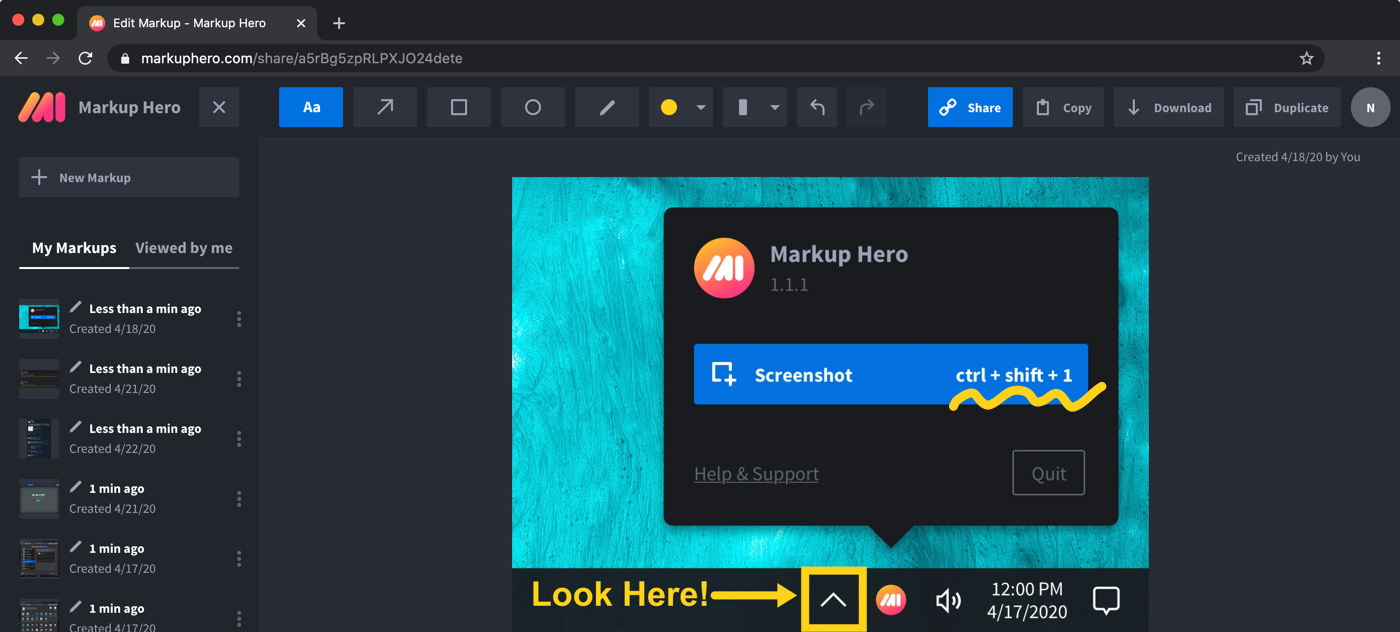
Step by step
Install the free Markup Hero Chrome extension
Add the Markup Hero Chrome extension to Chrome. It is free, and you can try the editor first at markuphero.com/new with no account or credit card.
Open the page you want to capture
Go to the web page in any Chrome tab. It can be much longer than your screen, such as an article, a long form, a receipt or a search result list.
Take a scrolling screenshot
Use the extension to take a full-page screenshot of the tab, so the whole page, top to bottom, becomes one image. It opens in the Markup Hero editor in your browser.
Mark it up
Add arrows and text to point things out, use rectangles, ovals and the highlighter to mark areas, and crop what you do not need. Blur names, emails or numbers you want to keep private; the blur is permanent in what you share.
Share or save it
Copy the share link and paste it into an email, Slack or a text, where it shows a thumbnail preview. You can also copy the image to your clipboard, download a PNG or export a PDF.
The built-in way: Chrome DevTools
Google documents a full-page capture inside Chrome DevTools, the panel developers use to inspect web pages. You do not need to be a developer to use it. Open DevTools with Ctrl + Shift + I on Windows or Linux, or Cmd + Option + I on a Mac, or choose More Tools > Developer Tools from Chrome's menu.
You get one image of the whole page. To add arrows, text or blur, open the saved image in an editor afterward.
- Open DevTools and click Toggle device toolbar in the action bar at the top.
- Optionally pick a device or width from the Dimensions list, which opens set to Responsive.
- Click More options and select Capture a full size screenshot.
- For part of a page, open the Command Menu (Control + Shift + P; Command + Shift + P on a Mac), type screenshot and select Capture area screenshot.
Using Microsoft Edge instead
If you also have Microsoft Edge, it has a Screenshot tool built in. Press Ctrl + Shift + S and select Capture full page, and Edge captures the entire webpage in a single screenshot. You can also open it from the right-click menu on any site. Before you copy or save the image, you can add comments or markup with a pen or touch. See how to annotate a website for more on marking up the result.
Other Chrome extensions that capture full pages
Several other extensions list full-page capture on their own sites. Pick the one whose editing and sharing fit the way you work. For a closer look at one of them, see Markup Hero vs GoFullPage.
- GoFullPage: one click captures the full page, and the free version downloads it as PNG, JPG or PDF. Annotations need Premium ($12 USD per year). Also on Edge and Firefox.
- Awesome Screenshot: screenshots of an entire page plus screen and camera recording. The free plan lists up to 100 screenshots, unlimited when saved to your own computer.
- FireShot: captures a full page, the visible part or a selection, and saves to PDF with searchable text, PNG or JPEG. FireShot Pro adds a built-in image editor.
Firefox, Mac and other places
Markup Hero also has a free Firefox add-on, available from the download page, and it takes scrolling, full-page screenshots of web pages too. On a Chromebook, the Chrome extension and the browser editor both run in Chrome, so nothing else needs to be installed. For capturing long content outside the browser, read how to take a scrolling screenshot and the guide for scrolling screenshots on a Mac.
Tips for a clean long screenshot
Long pages can trip up any capture method, so a few habits help. Close cookie banners, chat bubbles and pop-ups before you capture. Scroll to the bottom once first so images that load as you scroll are already there. Then look over the saved image before you send it: check that nothing repeats or is missing, and blur names, emails or account numbers that should stay private.
Frequently asked questions
Does Chrome have a built-in full-page screenshot?
Yes, inside Chrome DevTools. Open DevTools, click Toggle device toolbar, then click More options and select Capture a full size screenshot. Google's documentation describes it as a screenshot of the whole page, including the content that isn't visible in the viewport. An extension does the same from a toolbar button, which is quicker if you do it often.
Is there a free extension for scrolling screenshots in Chrome?
Yes. The Markup Hero Chrome extension is free and takes scrolling, full-page screenshots that you can annotate and share. The free Basic plan includes 25 markups, annotations editable for 24 hours and uploads up to 8 MB. GoFullPage's free version also captures full pages and downloads them without editing.
How much does Markup Hero cost?
The Basic plan is free forever with no credit card. Premium is $10/month, or $4/month billed yearly ($48/year), and adds unlimited markups, annotations that stay editable forever and 50 MB uploads. There is also a $199 one-time Lifetime plan. Prices are as of November 2026.
Can I take a full-page screenshot on a Chromebook?
Yes. The Markup Hero Chrome extension and the browser editor both work in Chrome on a Chromebook, so nothing else needs to be installed.
Can Markup Hero record a video of the page?
No. Markup Hero takes screenshots and has no screen recording or video capture. If you need a video, tools such as Awesome Screenshot record the screen as well as taking full-page screenshots.
Who can see my shared screenshot?
Markup Hero has custom sharing and privacy settings, so you control what you share. People you share a link with can add their own annotations to your shared markup, and anyone can duplicate a shared markup to edit their own copy. Blur private details before you share.
Prices and features checked on November 23, 2026 on each product's own website: developer.chrome.com, developer.chrome.com, developer.chrome.com, microsoft.com, gofullpage.com, gofullpage.com, gofullpage.com, awesomescreenshot.com, awesomescreenshot.com, getfireshot.com. Prices can change; check the vendor's site before you buy.
More comparisons: Markup Hero vs. other screenshot tools.
New and coming soon from Markup Hero
Photo reports are live in SuperHero plans, and two more tools are on the way. Join a waitlist to get early access.
Markup Hero for teams in: