Annotate a website and share feedback
A quick, free way to annotate a website is to take a full-page screenshot, mark it up and share a link. With the free Markup Hero Chrome extension you capture the whole scrolling page, add arrows, text and blur, and send the link; the people you share it with can add their own notes. If a team is reviewing a site under construction over many rounds, a tool that pins comments on the live site, such as MarkUp.io, BugHerd or Pastel, may fit better.
Try Markup Hero Free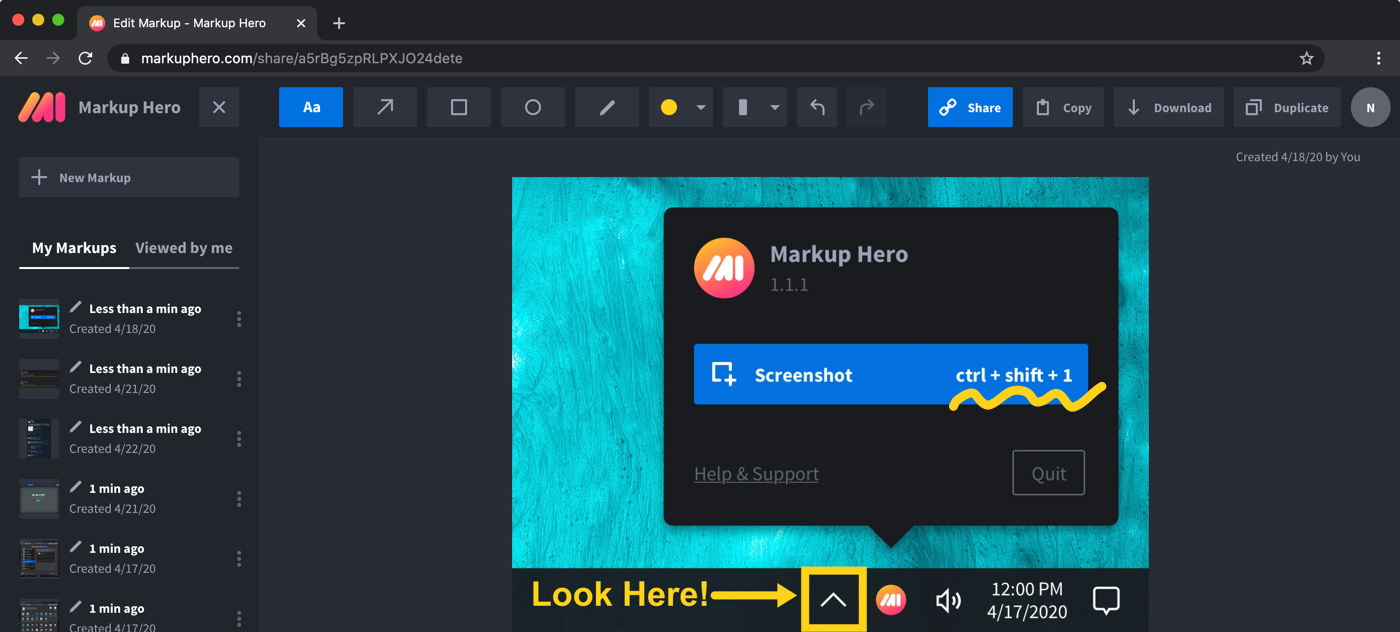
Step by step
Add the free Chrome extension
Install the Markup Hero Chrome extension. It takes screenshots of any tab. Firefox users can get the free add-on from the download page. No account is needed to try the editor at markuphero.com/new.
Take a full-page screenshot
Open the website and use the extension to capture the visible part or the whole scrolling page in one image. It opens in the Markup Hero editor in your browser.
Add arrows and text
Use arrows to point at what should change and text boxes to explain it. Rectangles, ovals, lines, the pen and the highlighter mark areas, and you can change colors, line thickness and font size.
Blur anything private
Drag the blur tool over names, emails or account numbers. The blur is permanent in what you share.
Share a link
Copy the share link and paste it into an email, Slack or a text message, where it shows a thumbnail preview. You can also copy the image, download a PNG or export a PDF.
Let others add their notes
People you share with can add their own annotations to your shared markup, so the feedback stays in one place. Anyone can also duplicate a shared markup to edit their own copy.
Two ways to annotate a website
You can mark up a picture of the page or comment on the page itself. A screenshot freezes the page as you see it, including pages behind a login, and the people you send the link to can see your notes in their browser. Live-site tools load the real page and pin each comment to a spot on it, which suits a website that is still being built and changes between review rounds.
- Screenshot and annotate: quick, free, good for one-off feedback, bug reports and showing how a page looked on a given day.
- Comment on the live site: suits agencies and web teams running repeated client reviews and tracking each comment as a task.
Built into Microsoft Edge: the Screenshot tool
If you use Microsoft Edge, you already have a basic option. Press Ctrl+Shift+S or right-click the page and pick Screenshot. Microsoft says it can capture a full web page, even the parts you would have to scroll to see, and you can add markup with pen or touch before you copy or save the image. Older Microsoft articles call the same tool Web capture. Details are on Microsoft's Edge Screenshot page.
For text boxes, arrows, blur or a share link, open the image in an annotation tool such as Markup Hero.
Tools that comment on the live site
MarkUp.io lets you drop a link and comment directly on a live site, and guests can join without registering. It also handles images, PDFs and videos. Pro starts at $79/mo (or $990/yr) with a 14-day free trial, as of November 2026. See Markup Hero vs MarkUp.io.
BugHerd lets clients point, click and comment on a live website; it grabs a screenshot and technical details and creates a task. Standard is $50/mo billed monthly for 5 members, or $42/mo billed yearly. Pastel collects feedback on a live website, images and PDFs, offers a 14-day free trial with no credit card, and guests need no login.
When commenting on the live site fits better
Choose a live-site tool if you build websites for clients and review the same site many times, if comments need to stay pinned to a page element as the design changes, or if developers want each comment as a task with browser and device details attached. Some of them, such as BugHerd, also list video feedback, which Markup Hero does not record.
For a quick note on a page, a bug report with a picture, or feedback from people who will not set up a review tool, a marked-up screenshot is usually enough.
Keep private details out of shared pages
Web pages often show names, emails, order numbers or account details. Before you share a screenshot, use the blur tool on anything private; the blur is permanent in the shared image. You can also change the sharing and privacy settings for each markup. If you need a PDF for a report, export the markup to PDF, or download a PNG. More tips are in how to annotate anything and the scrolling screenshot guide.
Frequently asked questions
Is there a free website annotation tool?
Yes. Markup Hero's Chrome extension and editor are free on the Basic plan, which includes 25 markups, annotations editable for 24 hours and uploads up to 8 MB. Microsoft Edge also has a built-in Screenshot tool with pen markup. Premium is $10/month, or $3/month billed yearly (as of November 2026).
How do I annotate a whole web page that scrolls?
Use the Markup Hero Chrome extension to capture the full scrolling page in one image, then mark it up. In Edge, the built-in Screenshot tool can also capture a full page.
Can other people comment on my annotated page?
Yes. People you share a Markup Hero link with can add their own annotations to the shared markup, and anyone can duplicate it to make an edited copy of their own.
Can I comment directly on a live website instead?
Yes, with a live-site tool such as MarkUp.io, BugHerd or Pastel. They load the real page and pin comments to it. Each offers a free trial; as of November 2026, MarkUp.io Pro starts at $79/mo and BugHerd Standard is $50/mo billed monthly. Markup Hero works from screenshots instead.
Can I annotate a website on a Mac or in Safari?
Markup Hero has no Safari extension, but the editor works in Safari. On a Mac, use the free desktop screenshot app (Command+Shift+1) or the Chrome extension in Chrome, and the screenshot opens in the editor.
Does Markup Hero record video of a website?
No. Markup Hero does not record the screen or capture video. If you want video feedback on a site, use a tool that offers it, for example BugHerd, which lists video feedback on its plans.
Prices and features checked on November 12, 2026 on each product's own website: microsoft.com, microsoft.com, markup.io, markup.io, bugherd.com, bugherd.com, usepastel.com. Prices can change; check the vendor's site before you buy.
More comparisons: Markup Hero vs. other screenshot tools.
New and coming soon from Markup Hero
Photo reports are live in SuperHero plans, and two more tools are on the way. Join a waitlist to get early access.
Markup Hero for teams in: