GoFullPage alternatives
GoFullPage captures a whole web page in one click, and its free version has no limit on how many screenshots you take and download. People usually look elsewhere when they want to crop or annotate without paying for Premium, send a share link instead of a file, mark up PDFs, or want one tool for desktop apps as well as web pages. Below are six alternatives, with prices as of November 2026 and what each one runs on.
Try Markup Hero Free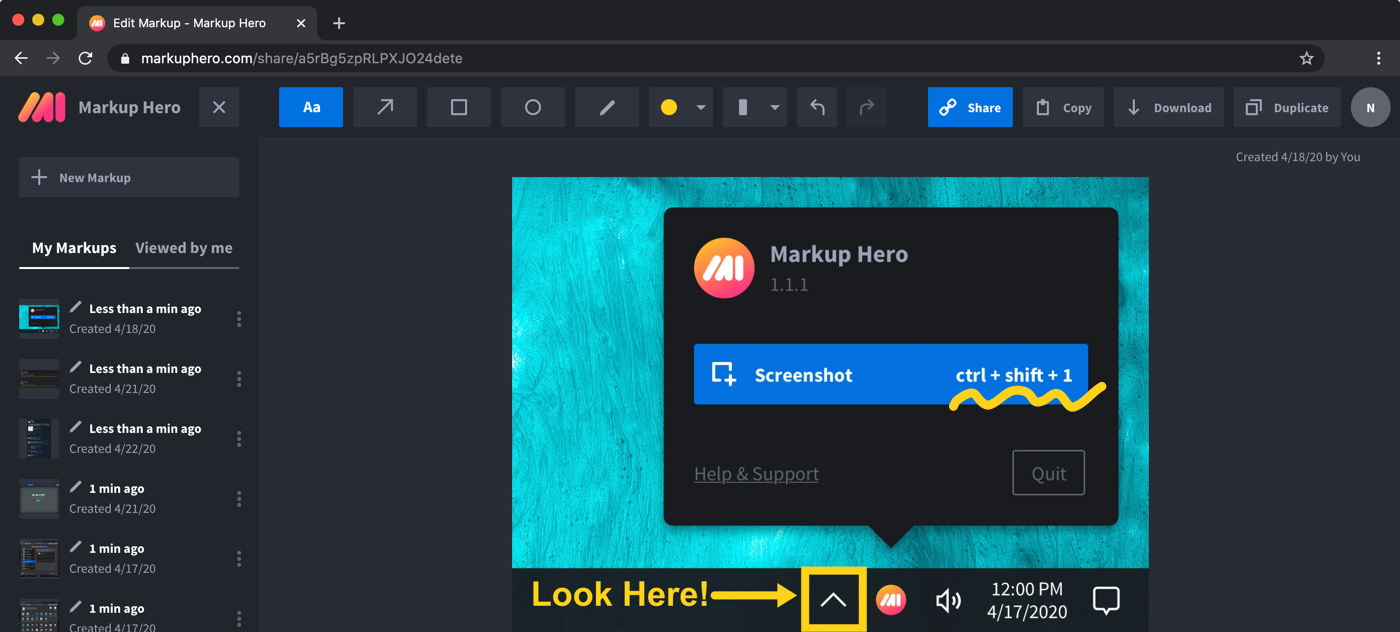
The options at a glance
Checked on November 29, 2026.
What GoFullPage does well, and why people switch
GoFullPage does one job and keeps it simple. You click the icon, it scrolls the page, stitches every part into one image and opens it in a new tab, where you download a PNG, JPG or PDF. Screenshots stay in the browser on your own computer. The reasons people switch are usually about what happens next: cropping and annotation are Premium features, the capture is a file you send yourself, and GoFullPage says it cannot scroll a PDF that is open in the browser.
So before you pick a replacement, decide which of those matters most to you: free markup, a link you can send, PDF annotation, video, or a desktop app.
GoFullPage: one click, unlimited free captures
GoFullPage (once called Full Page Screen Capture) is a browser extension for Chrome, Edge and Firefox. The free version lets you take and download as many screenshots as you want, as images or a PDF, and you can start a capture with Alt+Shift+P. Screenshots are kept in sandboxed storage inside the browser, not on GoFullPage's servers, so uninstalling the extension also deletes any images you did not download.
Premium costs $12 USD per year, with a 7-day free trial, and adds image cropping, a URL and date stamp, smart PDF page splitting and annotations such as blur, text and highlight. The Markup Hero vs GoFullPage page puts the two side by side.
- Good for: fast, private full-page captures you save straight to your computer.
- Not for: people who want to crop or annotate for free, or capture a PDF open in the browser.
Markup Hero: free annotation and share links
Markup Hero is a screenshot and annotation tool that runs in the web browser. Its free Chrome extension and Firefox add-on take scrolling, full-page screenshots, and free desktop screenshot apps for Mac, Windows and Linux (beta) capture anything on your screen. Each screenshot opens in the browser editor, where you add arrows, text, shapes, the highlighter, permanent blur and crop, then share a link, copy the image, download a PNG or export a PDF. You can also upload PDFs, including multi-page ones, and mark them up.
The free Basic plan allows 25 markups, keeps annotations editable for 24 hours and takes uploads up to 8 MB. Premium is $10/month or $4/month billed yearly ($48/year), and Lifetime is $199 once. Markup Hero does not record video, and editing needs an internet connection. You can try it now with no account.
- Good for: full-page screenshots you mark up for free and send as a link, plus PDFs.
- Not for: screen recording, or anyone who has to edit offline.
Awesome Screenshot: full pages plus screen recording
Awesome Screenshot takes a screenshot of an entire page in one click, lets you annotate it and share it, and also records your screen and camera. Besides browser extensions it has Mac, Windows and iOS apps. The free plan lists up to 100 screenshots with basic annotation tools (unlimited screenshots when saved to your own computer) and up to 20 recordings at up to 720p.
Paid plans are in USD: Basic (unlimited screenshots only) is $5/month billed annually or $6/month monthly, and Professional, which adds unlimited recordings up to 4k, is $6/month billed annually or $8/month monthly. Our Awesome Screenshot alternatives page covers it in more depth.
- Good for: people who want full-page screenshots and screen videos from one extension.
- Not for: people who only want a light screenshot tool without the recording side.
FireShot: searchable PDFs and batch captures
FireShot captures a full page, the visible part or just a fragment, and saves to PDF (with direct links and searchable text), PNG, GIF, JPEG or BMP. The free version is a simple one for taking captures; FireShot Pro adds a built-in editor, captures all open tabs or a list of websites, and can add headers, footers and watermarks with the date, time and page URL. Pro captures are created and stored on your device, and its editor and smart annotations are listed for Windows.
FireShot Pro Yearly lists at $39.95 per year, and a Lifetime license is $99.95, paid once with no renewals; both plans cover 2 devices. FireShot names Chrome, Firefox, Edge, Safari and other browsers.
- Good for: saving web pages as searchable PDFs and capturing many pages at once.
- Not for: Mac users who want the full Pro editor, which FireShot lists for Windows.
Nimbus Capture: screenshots, video and a team workspace
Nimbus Capture comes from Nimbus Web Inc., whose collaboration platform is now called FuseBase. It is a Chrome and Edge extension, with a desktop version for Windows, that takes entire website page screenshots, blurs confidential areas, and records your screen with your microphone and web camera. You share a screenshot or recording with one link, and teams can add comments, chat and tasks.
The free version records videos for up to 5 minutes. The order page lists Capture Pro at $60 for one account for one year, with unlimited recording length and video trimming.
- Good for: teams that want captures, recordings and comments in one shared space.
- Not for: people who only want a quick capture and have no use for a team workspace.
Microsoft Edge Screenshot: nothing to install
If you already use Microsoft Edge, its built-in Screenshot tool grabs a full webpage, even the parts you would have to scroll to see. Press Ctrl+Shift+S or use the right-click menu, choose Capture full page, then add comments or markup with a pen or touch before you copy or save it. Microsoft notes that availability may vary by device type, market and browser version.
- Good for: the occasional full-page capture in Edge with a quick pen note.
- Not for: people who work in Chrome or Firefox.
Chrome DevTools: a full-size screenshot without an extension
Chrome has a full-page screenshot hidden in its developer tools. Open DevTools (More Tools > Developer Tools, or Cmd+Option+I on a Mac and Ctrl+Shift+I on Windows or Linux), turn on the device toolbar, open its More options menu and choose Capture a full size screenshot. Google describes it as a screenshot of the whole page, including content that isn't visible in the viewport. Our step-by-step guide to a full-page screenshot in Chrome walks through it.
- Good for: a one-off long screenshot when you cannot install extensions.
- Not for: everyday use, since it takes several clicks each time.
Frequently asked questions
Is GoFullPage free?
Yes. GoFullPage's free version lets you take and download as many full-page screenshots as you want, as images or a PDF. Cropping, a URL and date stamp, smart PDF page splitting and annotations need Premium, which costs $12 USD per year after a 7-day free trial (as of November 2026).
What is a free GoFullPage alternative with annotation?
Markup Hero's free Chrome extension and Firefox add-on take scrolling, full-page screenshots and open them in an editor with arrows, text, shapes, highlighter and blur on the free plan, which allows 25 markups. Awesome Screenshot's free plan also lists basic annotation tools, and Edge's built-in Screenshot lets you mark up with a pen.
Can I share a full-page screenshot as a link?
GoFullPage keeps captures in your browser and lets you download them as an image or PDF, which you then send yourself. Markup Hero, Awesome Screenshot and Nimbus Capture can share a capture with a link. Before you send any link, check what the screenshot shows and who can open it.
Where does GoFullPage store my screenshots?
GoFullPage says screenshots are stored in sandboxed storage inside the browser, only on your computer, and not online or on its servers. If you uninstall the extension, the stored images are deleted too, so download the ones you want to keep first.
Which GoFullPage alternatives record video?
Awesome Screenshot records the screen and camera, and Nimbus Capture records the screen with a microphone and web camera; its free version allows videos up to 5 minutes. Markup Hero does not record video, so pick one of those two if you need both screenshots and screen videos.
What works on a Chromebook?
Browser extensions run in Chrome on a Chromebook. Markup Hero's Chrome extension and browser editor both work there, so nothing else has to be installed.
Prices and features checked on November 29, 2026 on each product's own website: gofullpage.com, gofullpage.com, gofullpage.com, awesomescreenshot.com, awesomescreenshot.com, getfireshot.com, getfireshot.com, getfireshot.com, thefusebase.com, thefusebase.com, app.nimbusweb.me, microsoft.com, developer.chrome.com, developer.chrome.com. Prices can change; check the vendor's site before you buy.
More comparisons: Markup Hero vs. other screenshot tools.
New and coming soon from Markup Hero
Photo reports are live in SuperHero plans, and two more tools are on the way. Join a waitlist to get early access.
Markup Hero for teams in: