Copy text from an image or screenshot
You can usually copy text from a picture with a tool you already have. On Windows 11, use Text actions in the Snipping Tool. On a Mac, iPhone or iPad, use Live Text. On Android and Chromebooks, use Google Lens. If you work in a browser, or want to copy the text and also mark up and share the same image or PDF, the free Markup Hero Magic tool does it without an install.
Try Markup Hero Free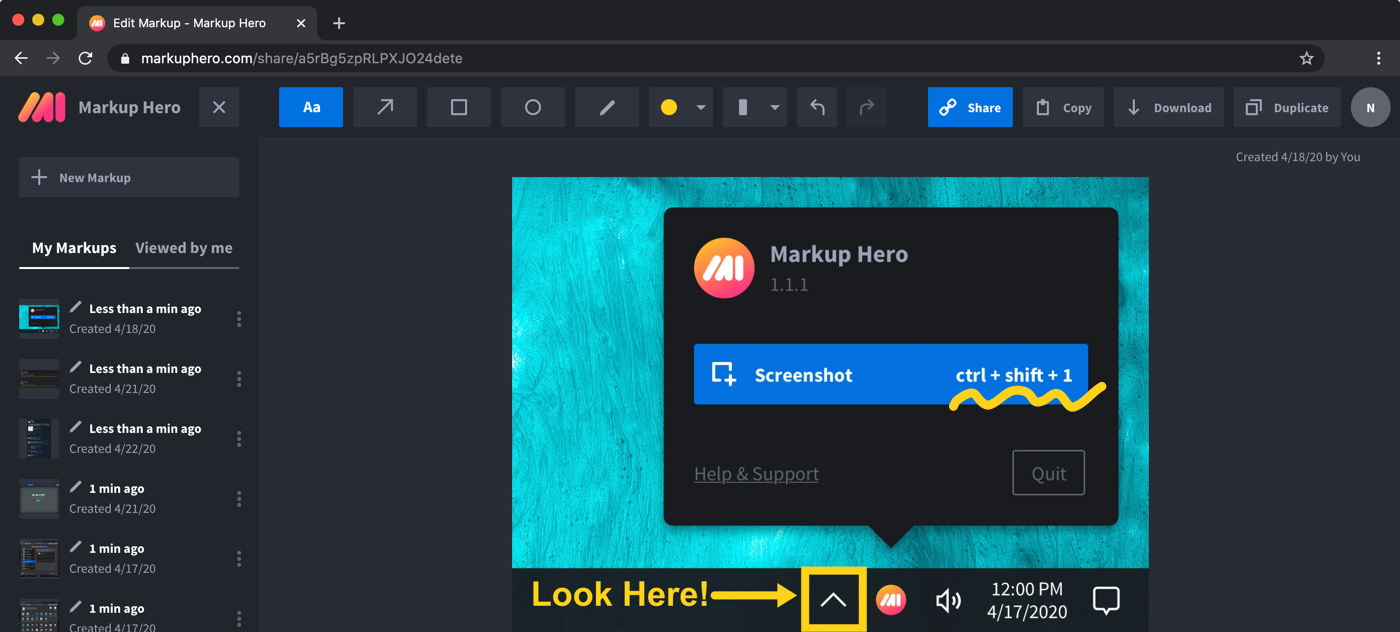
Step by step
Open the image in Markup Hero
Go to markuphero.com/new. No account or credit card is needed. Upload the image or PDF, or paste a screenshot from your clipboard.
Or capture the screen first
To grab text from a web page, use the free Chrome extension, which can also capture a full scrolling page. For anything else on your screen, use the free desktop app: Ctrl+Shift+1 on Windows or Command+Shift+1 on a Mac. The screenshot opens in the editor.
Pick the Magic tool
In the editor, choose the AI Magic tool. It works on screenshots, images and PDFs.
Select the area with the text
Drag over the part of the image that holds the words you want. Markup Hero copies the text in that area to your clipboard.
Paste it and check it
Paste the text into your document, email or chat. Compare it with the image and fix any letters or numbers that came out wrong.
Mark up and share if you need to
Add arrows, text or highlights to the same image, blur anything private, then share a link, copy the image or download a PNG.
On Windows 11: Text actions in the Snipping Tool
Press Windows logo key + Shift + S and select the area with the text. In the snip, select the Text actions button. You can then select and copy just the words you need, use Copy all text, or use Quick redact to hide email addresses and phone numbers. Microsoft says all text recognition runs locally on your device. The steps are in Microsoft's Snipping Tool help. For a side-by-side look at the two tools, see Markup Hero vs Snipping Tool.
On a Mac: Live Text in Preview and Photos
Open the image in Preview, hold the pointer over the text, drag to select it, then Control-click the selection and choose Copy Text. If you cannot select the text, choose Tools > Text Selection first. In Photos on a Mac, Control-click the text and choose Copy Text, or press Command-C. Paste it into any document or app. Apple notes that Live Text is not available in every region or language. See Live Text in Preview for the details.
On iPhone, iPad and Android phones
On an iPhone or iPad, open the photo in the Photos app, touch and hold a word, move the grab points to cover the text, then tap Copy. Tap Select All to take all of it. Apple lists an iPhone XS, iPhone XR or later with iOS 15 or later; its Live Text guide has the iPad models.
On Android, open the photo in Google Photos, tap More, then Google Lens. Google's tip: to copy text, tap and select the words you want to copy.
On a Chromebook and in Chrome: Google Lens
On a Chromebook, select Launcher, then Lens, and select the part of the screen with the text. When Lens detects text, a Copy text option puts it on your clipboard. You can also start it from the screen capture menu with Take partial screenshot. Google's Chromebook Lens help has the steps.
In Chrome on a computer, right-click an image and select Search with Google Lens, or right-click the page and select Search this tab with Google Lens, then highlight text or drag over any area. Results open in a side panel. Google says a screenshot of the page and page data are sent to Google when you use Lens this way.
Check the copied text before you use it
Text recognition reads pixels, so small fonts, blurry photos, handwriting and busy backgrounds can come out wrong. After you paste, read the text against the image. Check numbers, prices, dates, email addresses and names letter by letter, since a 0 and an O or a 1 and an l are easy to swap. Also check line breaks and table columns, which can paste in a different order. If part of the result looks wrong, select a smaller area and copy again.
When to use Markup Hero for this
Markup Hero helps when the text is in something you are already marking up: a screenshot you want to annotate, a multi-page PDF, or an image someone shared with you. It runs in any modern desktop, mobile or tablet browser, so it also works on a computer where you cannot install software. Besides copying text, you can add arrows and notes, blur private details and share the result with a link. See how to annotate a screenshot and how to annotate a PDF.
Frequently asked questions
How do I copy text from a picture for free?
Use the tool your device already has: Text actions in the Snipping Tool on Windows 11, Live Text on a Mac, iPhone or iPad, or Google Lens on Android and Chromebooks. In any browser you can also use the Magic tool in Markup Hero, which is free to try at markuphero.com/new with no account.
Can I copy text from a screenshot?
Yes. A screenshot is an image, so the same tools work. In the Windows 11 Snipping Tool, take the snip and select Text actions. In Markup Hero, paste the screenshot into the editor, choose the Magic tool and select the text.
Can I copy text from a scanned PDF?
Markup Hero opens multi-page PDFs, and the Magic tool works on PDF pages as well as images. Open the PDF, select the area with the text, and it is copied to your clipboard.
Why is some of the copied text wrong?
Text recognition guesses each letter from the pixels, so blurry photos, tiny fonts, handwriting and patterned backgrounds cause mistakes. Use a sharper image if you can, select a smaller area, and always check numbers and names after you paste.
Is my image uploaded anywhere?
It depends on the tool. Microsoft says the Snipping Tool's text recognition runs locally on your device. Google says Lens in Chrome sends a screenshot of the page to Google. Markup Hero is a web app, so you upload the image to the editor; blur private details before you share it, and set who can see each shared markup.
Is Markup Hero free?
Yes. The Basic plan is free forever with 25 markups, annotations editable for 24 hours and uploads up to 8 MB. Premium is $10/month, or $3/month billed yearly, with unlimited markups and 50 MB uploads (prices as of November 2026).
Prices and features checked on November 12, 2026 on each product's own website: support.microsoft.com, support.apple.com, support.apple.com, support.apple.com, support.google.com, support.google.com, support.google.com. Prices can change; check the vendor's site before you buy.
More comparisons: Markup Hero vs. other screenshot tools.
New and coming soon from Markup Hero
Photo reports are live in SuperHero plans, and two more tools are on the way. Join a waitlist to get early access.
Markup Hero for teams in: